How to Use Gesture Synth Weld: A Practical Guide
Learn how to use Gesture Synth Weld to play chords, record a loop, and save your performance without getting lost in the controls.
 TideSparrow
If you searched for how to use Gesture Synth Weld, this is the right instrument. The page itself says Gesture Synth. "Weld" comes from the project name or web address, not from a setting inside the synth.
The screen looks busy at first, but you can ignore most of it. Start with one chord, then make a loop.
Get one clean chord first
Use a laptop or desktop, preferably with Chrome or Edge. Face the camera in even light and keep your wrists in the frame. When the browser asks for camera access, allow it and wait for the hand tracking to load.
Scroll to Featured Gesture Synth presets and choose Easy C-major chords. This preset locks the fiddly parts of the controls, which makes it much easier to learn.
Now return to the instrument:
- Hold up one finger on your left hand.
- Hold up one finger on your right hand.
- Raise your right hand until you hear a chord.
The middle of the screen should show I. If you can see both hands but hear nothing, click once inside the instrument and raise your right hand a little higher. Browsers sometimes leave audio paused until the first click.
What each hand does
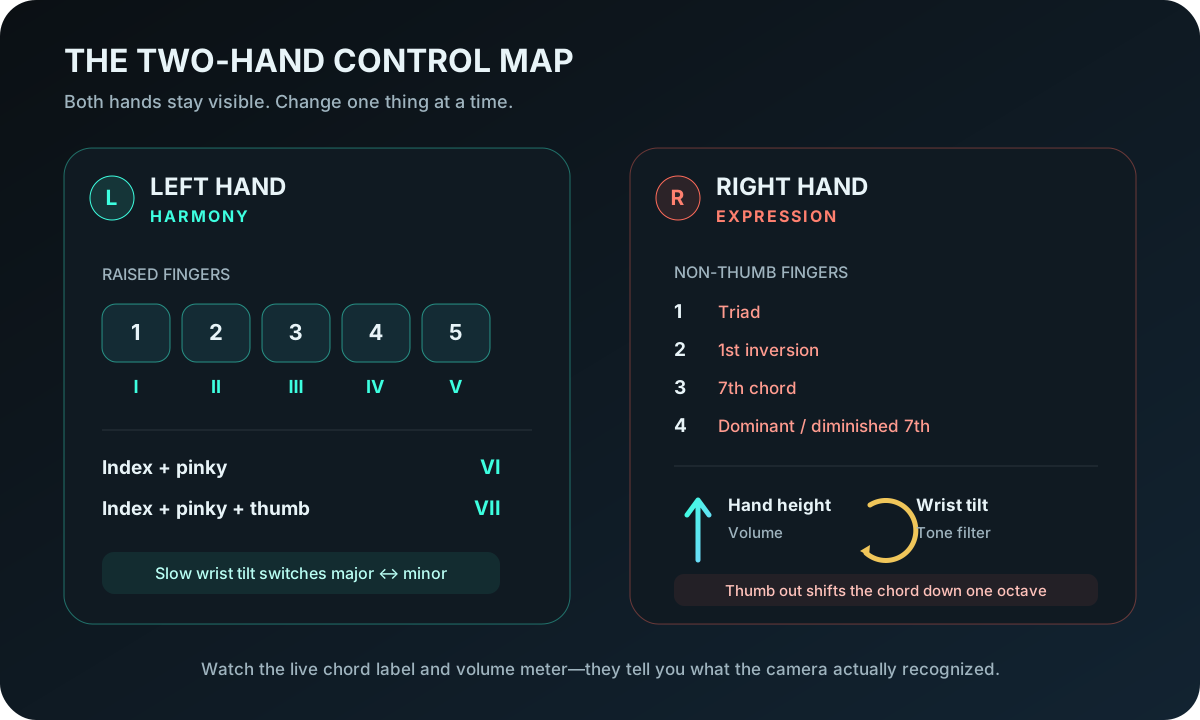
The left hand picks the chord. In C major, one finger gives you I, two gives II, three gives III, four gives IV, and five gives V. Index plus pinky gives VI. Add the thumb for VII.
The right hand controls how that chord sounds. Its height controls volume. Wrist tilt changes the tone. The number of raised fingers changes the chord style, while the thumb drops the chord by one octave.
For now, leave the easy preset loaded. Once the basic gestures feel reliable, try the full controls:
- Left hand: Scale notes + tilt major/minor
- Right hand: Finger layout = chord style
The live chord label is more useful than the camera preview. Watch it while changing poses. If it jumps between chords, slow down and separate your fingers.
Play this before recording
Try I | IV | V | IV. On the left hand, that is 1, 4, 5, then 4 fingers. Keep one finger raised on the right hand and use its height for volume.
Hold each chord for four beats. Repeat the sequence until the chord label stays steady. Do not worry about playing quickly. Hand tracking works better with clear poses than fast ones.
Record a loop
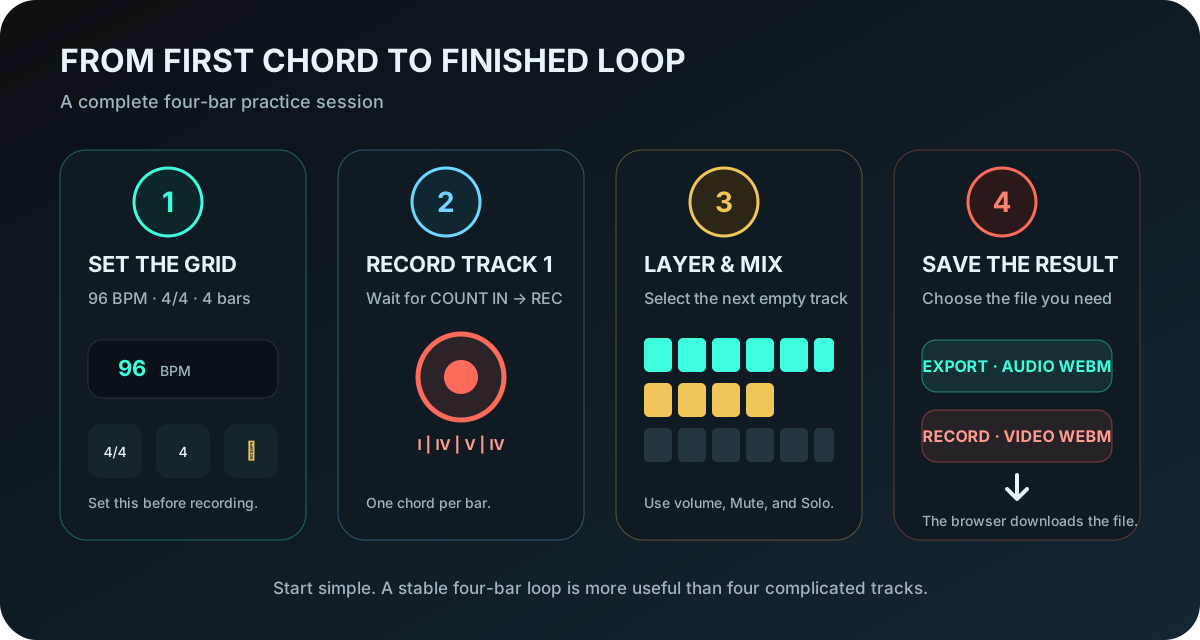
Set the bottom controls to 96 BPM, 4/4, and 4 bars. Select T1, then click the red record button or press R.
Wait for the count-in. Start playing when the label changes to REC, using one chord per bar:
I | IV | V | IV
After four bars, the recording stops and Track 1 begins looping. Select Track 2 if you want to add another part. A held chord or a simple Theremin line works better than trying to play something complicated straight away.
Made a mistake? Use Clear T1 to redo the selected track. Reset All clears everything.
The sequencer lets you fix small problems. Click a filled cell to mute or restore it. Right-click a cell to choose a chord. Each track also has volume, mute, and solo controls.
Save the result
There are two record buttons, and they do different jobs.
- Export in the bottom bar saves the loop mix as an audio WebM file.
- Record at the top of the instrument saves the camera view and synth audio together as an MP4 video. Older browsers that cannot record MP4 save WebM instead.
Use Export if you only want the music. Use Record if the hand performance is part of the clip.
If the controls keep misbehaving
- No sound: click inside the instrument, show at least one finger on the right hand, and move that hand higher.
- Chords keep changing: reload the Easy C-major preset, keep your fingers apart, and hold each pose for a moment.
- Camera blocked: allow camera access in the browser's site settings, close any other app using the webcam, then reload.
- Recording missing: use a current desktop version of Chrome or Edge. The video Record control is hidden on narrow screens.
Useful shortcuts are R to record, 1 to 4 to choose a track, M to mute, S to solo, and Delete to clear the selected track.
Once the four-bar loop works, change one thing at a time: chord style, wrist tilt, or a second track.